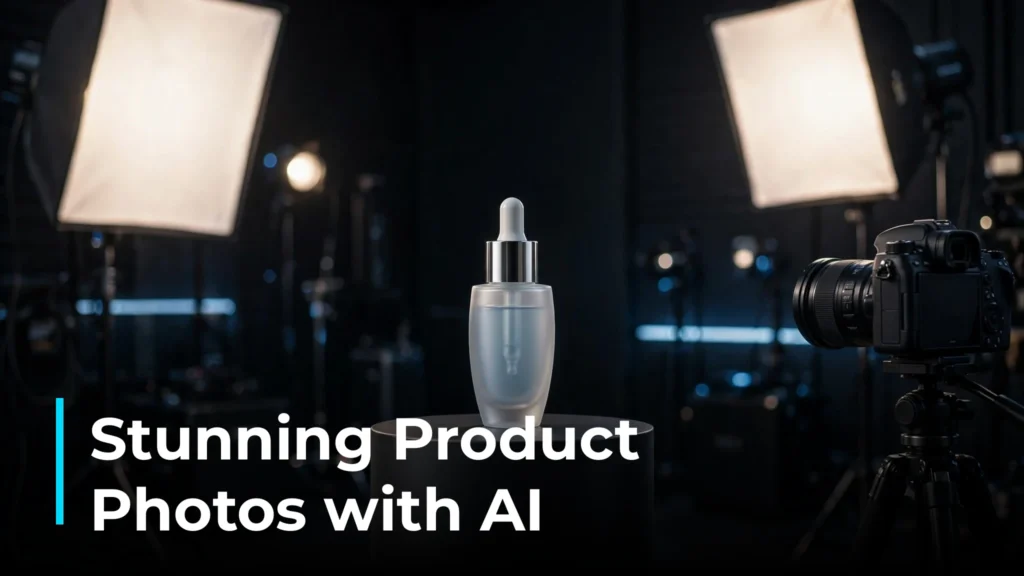
If you’ve ever scrolled through a small online store and wondered how the owner afforded a professional product shoot for every item, the answer is increasingly simple: they didn’t. They used AI product photos. With a smartphone snapshot and one of several easy AI tools, you can turn a kitchen-table photo into a polished, studio-style product image in minutes — no camera gear, no rented studio, no photographer invoice.
Product photography used to be one of the most expensive bottlenecks in e-commerce. Now the process of creating AI product photos is straightforward: upload a basic product photo, pick or describe a scene, and the AI rebuilds the image with a clean background, realistic lighting, and a setting that matches your brand. This guide walks you through the whole thing — the three best tools in 2026, a complete step-by-step workflow, copy-paste scene prompts, tips for realistic results, and the mistakes that make AI photos look fake.
Table of Contents
What Is AI Product Photography?
AI product photography uses generative AI to rebuild or restyle your product photos. Instead of starting with a camera and a physical set, you start with an ordinary photo of your product — even one shot on a phone against a plain wall — and the software generates a finished marketing image around it.
The typical process looks like this:
- Upload a photo of your product.
- Remove or replace the original background (the AI cuts the product out automatically).
- Choose or describe a scene — a marble countertop, a bright lifestyle setting, a dramatic dark backdrop, or clean white.
- Generate the final image, with AI-created lighting, shadows, and reflections.
The key point: the product itself comes from your real photo — only the surroundings, lighting, and styling are generated. That’s the difference between these tools and pure text-to-image generators, which create everything from a description and can subtly change your product’s shape, label text, or colors. (If you’re curious about pure text-to-image generation for other creative uses, our Midjourney vs DALL-E 3 comparison covers the two biggest options.)
The 3 Best Tools for AI Product Photos in 2026
Three tools stand out for store owners who want practical results without a learning curve. Each takes a slightly different approach, so the right pick depends on your products and budget. All prices below are as of October 2026 — confirm current numbers on each tool’s official pricing page before you buy, as prices in this market change fast.
1. Photoroom — The All-Rounder for Fast, Clean Edits
Photoroom is the most established of the three and the one most store owners try first. It began as a background-removal app and has grown into a full AI photo editor for sellers, with batch editing, AI-generated scenes, a Shopify app, and an API for high-volume stores. It runs on web, iOS, and Android.
Its strength is speed: the AI cutout is fast and accurate enough to run a whole batch of products through in an afternoon, and core tools like background removal don’t consume AI credits on paid plans. If your main need is clean, consistent listing photos rather than elaborate lifestyle scenes, Photoroom is hard to beat.
Pricing (as of October 2026): A free plan with watermarked, limited exports is available. Paid plans start around $8/month with annual billing, with higher tiers for teams and high-volume sellers. Prices vary by region and billing channel, so confirm on photoroom.com before subscribing.
Best for: Solo sellers and small stores that need clean, professional listing photos fast.
2. Pebblely — The Simple “Pick a Scene” Option
Pebblely takes the simplest possible approach: upload your product photo (no manual background removal step in its current version), choose from 40+ background themes or describe a custom scene in words, and get finished images in seconds. It also supports custom sizes for different platforms, bulk generation, and bulk logo/badge overlays for running a whole catalog through one style.
Its pricing is unusually easy to understand: you buy a monthly allowance of generated images rather than a credit pool. Each standard image uses one monthly allowance credit, which makes it simple to calculate your cost per shot.
Pricing (as of October 2026): Pebblely lists three paid tiers — Lite at $9/month for 30 images, Basic at $19/month for 200 images, and Pro at $39/month for 500 images — with annual billing reportedly including two or more months free. High-resolution mode consumes two credits per image. A free tier with a limited monthly allowance has also been reported. Verify current details on Pebblely’s official pricing page, as plan specs have changed over time.
Best for: Beginners who want the shortest path from upload to finished photo, and stores that want a predictable per-image cost.
3. Flair.ai — The Creative Control Option
Flair.ai is built for brands that want art direction, not just one-click backgrounds. You stage the scene yourself on a drag-and-drop canvas: place your product, add props, set the framing, and the AI renders the composition into a finished photo. It also supports custom-trained product models for repeatable brand styles, on-model photography for apparel, and short product videos. Templates are reusable, so a scene you build once can run across every SKU in a product line.
The tradeoff is effort: staging a scene takes longer than clicking a template. But if you have a specific look in mind — a particular color palette, a signature prop, a campaign concept — Flair gives you control that template-based tools can’t.
Pricing (as of October 2026): A free plan with a small image allowance (reportedly five images) plus a custom model and a video generation to test the platform. Paid plans start at $8/month (Pro), with Pro+ at $26/month including 80 images, custom models, and a commercial license, and Scale from $38/month with 150 images, videos, and early API access. Note that instant image and ad generation reportedly consume four times the standard image quota. Check flair.ai for current numbers.
Best for: Brands and creative teams that want hands-on composition control and are willing to spend more time per image.
| Tool | Starting price (paid) | Free tier | Standout strength |
|---|---|---|---|
| Photoroom | ~$8/month (annual billing) | Yes (watermarked, limited) | Fast background removal + batch editing |
| Pebblely | $9/month (30 images) | Yes (watermarked, limited) | Simplest workflow; per-image pricing |
| Flair.ai | $8/month | Yes (small image allowance) | Drag-and-drop scene staging + custom models |
The Step-by-Step Workflow: From Kitchen-Table Snapshot to Store-Ready Photo
The full process, end to end, with any of the three tools above — the buttons differ, but the steps are the same. Budget about 30 minutes for your first product, and 5–10 minutes per product once you have the rhythm down.
Step 1: Shoot a clean source photo with your phone
The AI can only work with what you give it. A sharp, well-lit source photo is the difference between a realistic result and an obvious fake. A modern smartphone is plenty — just follow these basics:
- Use natural daylight near a window, or shoot outdoors in shade. Avoid harsh direct sun and yellow indoor bulbs.
- Shoot against a plain background — a white poster board, a plain wall, or a neutral table. This makes the AI’s cutout dramatically cleaner.
- Keep the product centered and fill the frame, leaving a little margin around the edges.
- Wipe the product clean. The AI won’t always remove dust, fingerprints, or stray hairs.
- Turn off your flash and tap the screen to focus on the product.
Take two or three angles of each product so you have options at the staging step.
Step 2: Remove the background
Upload your photo and run background removal. In Photoroom this is the core one-tap feature; in Pebblely’s current version the product is handled without a separate cutout step; in Flair.ai, background erasure is part of the editing suite.
Check the edges of the cutout before moving on. Zoom in on tricky areas — wispy fabric, glass edges, thin handles, reflective metal — and use the tool’s edge-refinement option if anything looks off. A sloppy cutout is the most common giveaway in AI product photos.
Step 3: Choose a scene style that fits your brand
Before generating anything, decide on the visual direction. The most effective product photos aren’t the fanciest — they’re the most consistent with your brand. Pick one direction and use it across your catalog:
- Clean studio look: soft gradient or plain light background. Best for marketplaces and modern brands.
- Lifestyle scene: the product placed in a realistic setting — a candle on a side table, skincare on a bathroom shelf. Best for brands that sell a mood.
- Textured backdrop: marble, linen, concrete, or wood surfaces. Best for food, cosmetics, jewelry, and home goods.
A store where every listing uses the same background family looks far more trustworthy than one with thirty random styles.
Step 4: Generate the scene with a clear, specific prompt
If your tool uses templates, browse them and pick the closest match. If it supports custom prompts (Pebblely and Flair.ai both do), write a specific description — vague prompts produce generic results, and our beginner’s guide to writing AI prompts covers the fundamentals if you’re new to this.
Here are copy-paste templates you can adapt — replace the bracketed parts with your product’s details:
- Studio minimal: “Professional studio product photo, [red ceramic mug] centered on a seamless light-gray background, soft diffused lighting, gentle natural shadow beneath, minimal and clean, high detail”
- Lifestyle cozy: “Warm lifestyle photo of [a scented soy candle in an amber glass jar] on a wooden side table next to a stack of books, soft morning window light, blurred living room background, cozy and inviting”
- Skincare flat-lay: “Overhead flat-lay photo of [a white moisturizer tube] on a white marble surface with eucalyptus sprigs and water droplets, bright airy spa lighting, fresh and clean aesthetic”
- Dramatic dark: “Premium product photo of [a black perfume bottle] on dark slate, dramatic side lighting with soft rim light, luxury mood, dark charcoal background”
Generate two or three variations per product. Having options lets you pick the one where the lighting, shadows, and product edges look most natural. For extra variety, compare your results with our roundup of the best free AI image generators.
Step 5: Inspect every detail before you approve
This is the step most people skip, and it’s what separates professional-looking results from obvious AI. Open each image at full size and check: when logos or label text keep coming out garbled, try building the mark separately with one of the best AI logo generators first.
- Label text and logos: AI still mangles small text. Read every word on packaging and engraved surfaces.
- Product shape and edges: make sure nothing got warped or stretched — especially handles, caps, straps, and corners.
- Colors: compare the product against your source photo. The item’s color must match what you’ll ship.
- Shadows and reflections: they should fall in a sensible direction and look soft, not painted on.
- Hands and props: if the scene includes a hand or extra objects, check them carefully — AI still struggles with fingers.
If something looks off, regenerate with a simpler prompt. Simpler scenes with fewer elements almost always render more realistically. For touch-ups that don’t need a full regeneration, see our AI photo editing guide.
Step 6: Match your catalog — sizes, ratios, and files
One image isn’t enough for a listing. Generate your variations now, in the same scene style, and export at the right sizes:
- Square (1:1): the standard for most marketplace main images.
- Portrait/vertical: works well for mobile-first shoppers and social posts.
- High resolution: export at the largest size the tool allows so images stay sharp on zoom.
Save source photos and project files with clear filenames (e.g., “candle-amber-source.jpg”, “candle-amber-hero-v2.jpg”). You’ll thank yourself when you update a photo six months from now.
Step 7: Publish and test
Upload your new photos and look at them in context — on the product page, in search results, and on your phone. A photo that looks perfect in the editor can feel off next to your other listings if the brightness or color temperature doesn’t match.
Rule of thumb: if you can spot the AI at a glance, so can your customers. When in doubt, simplify the scene — fewer generated elements means fewer chances for something to look wrong.
Tips for Realistic Results
- Garbage in, garbage out. The biggest predictor of a realistic result is a sharp, evenly lit source photo. Spend five extra minutes on the shoot and you’ll save an hour of regenerating.
- Match the light direction. If your scene says “soft morning window light from the left,” the shadow should fall to the right. Contradictory lighting is the fastest way to make a photo feel fake.
- Keep generated props minimal. One or two props that make sense for the product beat a cluttered scene every time.
- Stay true to the product. The AI will occasionally “improve” your product — smoothing textures, shifting colors. Always compare the final image against your source photo.
- Keep one visual system. Choose a background family and lighting style, then use it across your catalog. Coherent stores convert better.
- Check images on mobile. Most shoppers are on phones — edges and labels that look fine on a monitor can reveal problems at small sizes.
- Reuse your winners. Once you have a library of strong product photos, they can pull double duty in marketing — our guide to repurposing content with AI shows how one visual asset becomes many pieces of content.
Canva makes it easy to turn those winning product photos into social-ready creatives for your store.
Mistakes to Avoid
1. Publishing the first generation. The first output is a starting point, not a finished photo. Generate several, compare, and only publish the ones that pass the full inspection from Step 5.
2. Warping the product. If the AI changes your product’s shape, label, or color, the photo is unusable — no matter how pretty the background is. Your listing photo is a promise to the buyer.
3. Inconsistent styles across your catalog. Thirty products in thirty different fake rooms looks like a dropshipping scam. Pick a style system and commit to it.
4. Overly complex scenes. Elaborate scenes distract from the image and multiply the chances of visible AI artifacts. Simple wins.
5. Ignoring main-image requirements. Many marketplaces require the main listing image on a pure white background at specific dimensions. Generate a clean white-background version of every product alongside your lifestyle shots, and check each platform’s image requirements before uploading.
6. Forgetting about scale. AI scenes sometimes place products next to props at the wrong scale — a mug the size of a bucket, a watch floating oddly. Sanity-check size relationships before publishing.
Frequently Asked Questions
How much do AI product photos cost?
Far less than a traditional shoot. All three tools covered here have free tiers, and paid plans start around $8–9/month as of October 2026. Pebblely’s Lite tier ($9/month for 30 images) works out to about 30 cents per finished photo. A single professional product shoot typically costs hundreds of dollars — the AI route pays for itself the moment you have more than a handful of products.
Do I need photography skills to start?
No, but a little technique helps. The AI handles the hard parts — cutouts, background removal, lighting effects — but it can’t fix a blurry, dark, or crooked source photo. If you can shoot a clear, well-lit phone photo against a plain background (see Step 1), you have all the “photography skills” this workflow requires.
Will AI product photos replace a professional photographer?
For most small stores, they replace the need for one in day-to-day catalog work. AI is excellent for consistent listing photos, lifestyle variations, and social content. A professional still has an edge for hero brand campaigns, complex on-model shoots, and hard-to-photograph products like highly reflective items or styled food. Many growing brands use both: AI for the catalog, pros for the flagship campaign.
How do I make sure the product still looks like the real thing?
Two habits: start with an accurate source photo, and inspect the final image at full size against that source before publishing. Check shape, color, label text, and proportions. If the AI altered any of them, regenerate with a simpler scene or a cleaner cutout. Never ship an image where the product doesn’t match what the customer receives — that’s not just an aesthetic issue, it’s a trust issue.
Are AI product photos okay to use in my store?
AI-generated product photos are widely used by online sellers, and these tools are built specifically for e-commerce imagery. Always check each sales platform’s listing and image requirements before uploading — rules for background color, minimum dimensions, and main-image formatting vary by platform and change over time. As a best practice, keep a clean, accurate main image for every product and use stylized lifestyle shots as supporting images.
Which tool should I start with?
Start with Photoroom or Pebblely — both have free tiers and take you from upload to finished photo in minutes. Choose Photoroom for fast batch background removal across a catalog, and Pebblely for the simplest per-image workflow. Move to Flair.ai when you want more art direction control: reusable scene templates, staged compositions, and custom brand models.
Conclusion
AI product photos have removed the biggest excuse small stores had for mediocre product images. You don’t need a studio, a camera, or a budget — you need a smartphone, a window, and about thirty minutes to learn one of these tools. Start with a free tier, run five products through the workflow above, and compare the results to your current listings. The takeaway is simple: in 2026, professional-looking product photography is a workflow, not a budget line — and any store owner can run it.